How to Market an App With Slideshows and Reels
By Piet PhamReviewed on 7 min read
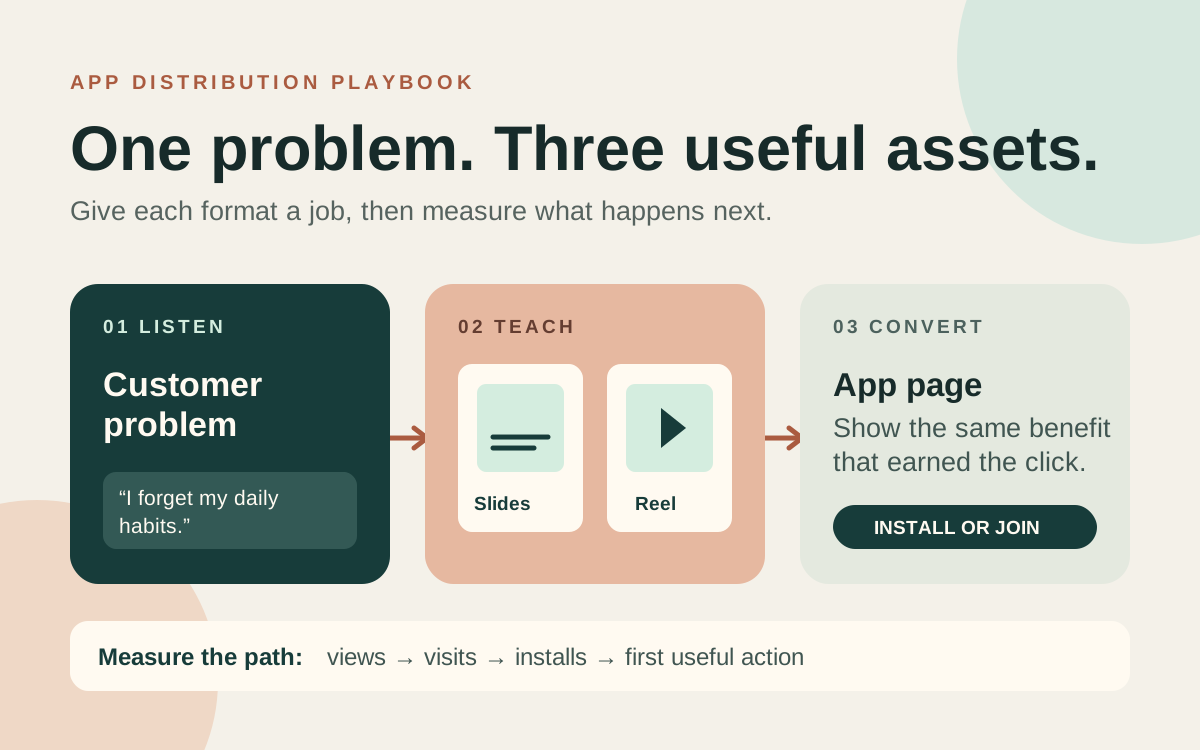
If you have an app but no distribution, start with one user problem instead of a feature announcement. Turn that problem into a slide post people can save and a short video people can understand without context. Then give interested viewers a clear path to a store page or waitlist that explains the same benefit.
Key Takeaways
- Collect the words people use in reviews, support messages, and community questions before choosing a topic.
- Give a slideshow one narrow teaching job and a Reel one visual demonstration job.
- Keep the promise in the post and the destination page aligned.
- Track visits, installs or waitlist joins, and the first useful action, not just reach.
- Review the results after four weeks and update the best topic before making more variations.
Find a Problem You Can Show in Five Slides
Look at your own support inbox first. If the app is new, read public reviews of alternatives and discussions where your audience asks for help. Record the exact question, the situation behind it, and whether your app actually helps. Do not turn every complaint into a claim about your product.
Imagine a simple habit app. A useful starting question might be, "How do I remember a new habit after the first week?" That is more specific than "the best habit app" and gives you something to teach before asking for an install.
Keep a small research sheet with the problem, source link, date, audience, and proposed action. Choose a topic when the same problem appears more than once and you can show a real example. For a product with an inspiration library, review existing examples for visual patterns, then create your own wording and images. Do not copy another creator's screenshots or imply that their results are yours.
Make a Slideshow That Solves One Small Part
The first slide should state the problem in the reader's language. The second should answer it. The rest should show the steps, with the app introduced only where it actually makes the step easier.
For the habit example, a five-slide sequence could be:
| Slide | Reader job | Example |
|---|---|---|
| 1 | Recognize the problem | "Your new habit disappeared after day seven?" |
| 2 | Get the answer | "Attach it to a routine you already do." |
| 3 | See the method | "After morning coffee, do the two-minute version." |
| 4 | See the app's role | "Set a reminder for that existing routine." |
| 5 | Know the next step | "Try the routine today; save the plan or see the app." |
Make the final step proportionate to the post. Someone who came for a helpful habit tip may save the slides first and explore the app later. A hard sell on every slide gives them little reason to keep reading.
Wavegrain can draft a slide sequence, create images and captions, and let you edit individual slides before export. Its carousel creation guide shows the review steps, including how to keep a recurring creator recognizable across the batch.
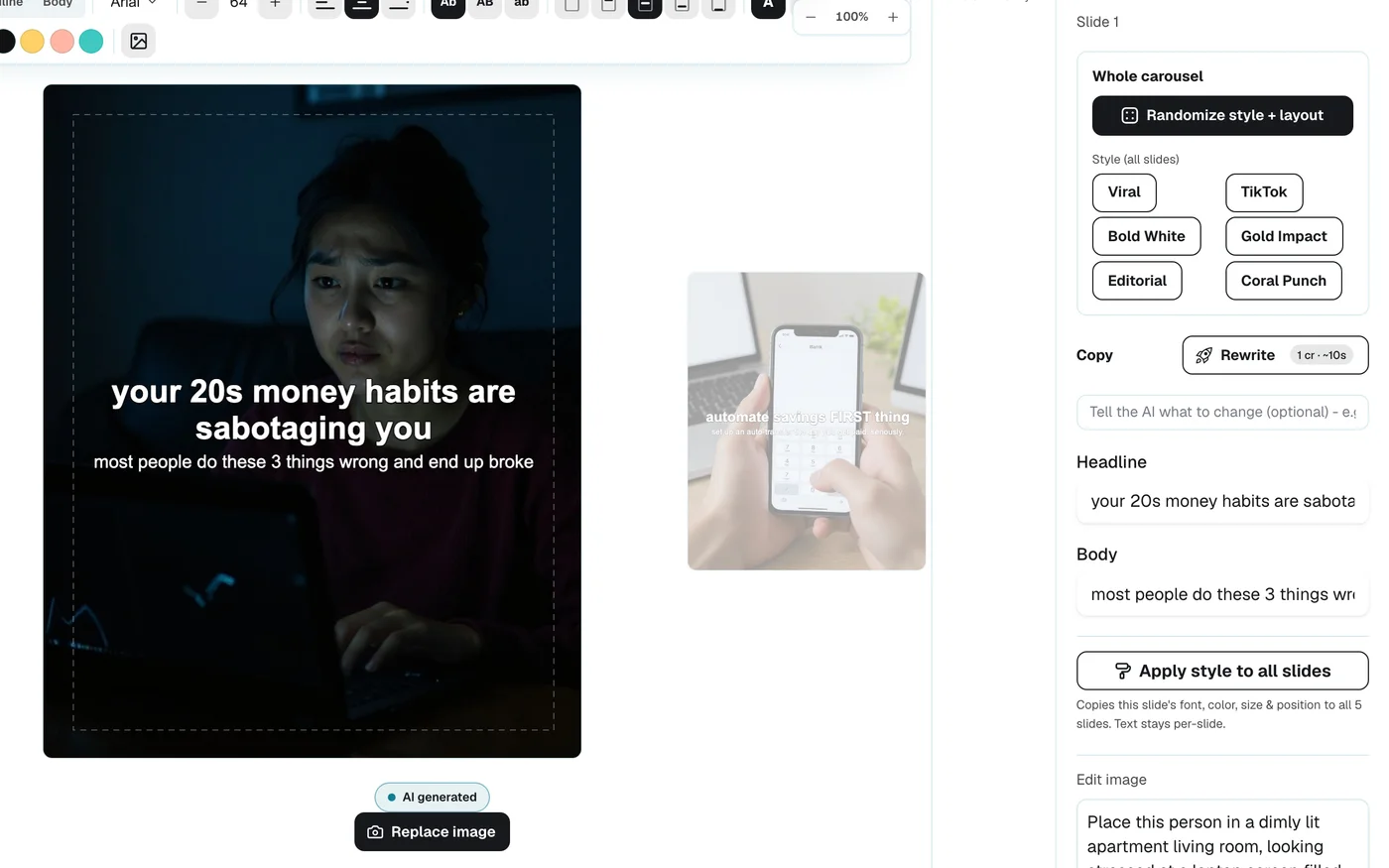
The Wavegrain editor lets you review the exported story one slide at a time. This screenshot is of the product, not a claimed campaign result.
Adapt the Idea Into a Reel
A Reel needs motion, so do not simply assume the slide export is a finished video. Use the same question and answer, then show one visible action: opening the app, setting the reminder, and returning to the routine. Write the video as a separate shot list and cut anything the viewer must read for too long.
For example, the opening can show a missed streak, the middle can show attaching a two-minute action to morning coffee, and the ending can show the reminder being set. The video and slideshow share a useful idea, but each format does a different job. Record which version sent people onward.
Wavegrain exports carousel images and captions, and it can also export the slides as a 1080x1920 MP4 with fades between slides and no music. That video is a slideshow, not the motion Reel described above, so you still need a camera or video editor for the shot list. If you use a generated creator in the slides, review the imagery carefully and keep the app demonstration real. The character consistency guide explains why a generated face can change from slide to slide and how to keep it stable.
Give Viewers a Matching Destination
If the post promises a way to remember habits, the destination should immediately show that workflow. Use a store listing, a focused landing page, or a waitlist page according to the app's release stage. Keep one obvious action above the fold and use screenshots that show the promised feature.
For an iOS app, Apple's campaign links can identify marketing efforts in App Store Connect Analytics after the app has enough data. Apple notes that small campaign groups may be hidden by its reporting threshold, so an empty campaign report does not prove a post had no effect. For Android, Google Play's conversion analysis can break down store listing visitors and install or open clicks by source and campaign. Check completed acquisitions separately because the current store listing report focuses on clicks.
If the app has not launched, use a waitlist and count accepted submissions. When the app is available, link to the relevant store listing and track the first action that demonstrates value, such as creating a habit or finishing a first session. An install with no activation is a weaker signal than a smaller number of people who use the product.
Run a Four-Week Test You Can Learn From
Choose one audience and three problems. For each problem, produce two slide posts with different opening lines and one short video showing the task. Publish on a schedule you can sustain and record the URL, date, format, topic, opening line, destination, and CTA in a sheet.
| Week | Work | Decision at the end |
|---|---|---|
| 1 | Research three repeated problems and build the matching destinations. | Reject topics your app cannot honestly solve. |
| 2 | Publish the first slide and video pair around one problem. | Check whether the message earns qualified visits. |
| 3 | Publish variations around the second and third problems. | Keep the format and destination recorded for each post. |
| 4 | Refresh the best answer and destination page. | Expand the topic that led to meaningful app actions. |
The basic funnel is post view to profile or link visit to store page or waitlist to install or signup to activation. Measure each step separately. If a post gets views but few visits, revise its promise or action. If visits arrive but few people install, review the destination message and screenshots. If installs arrive but few people activate, investigate onboarding before producing more posts.
This is a planning cadence, not a guarantee that a certain number of posts will create installs. Keep the messages that answer real questions and use the observed behavior to decide what to make next.
Turn the Winner Into Search Content
The question behind a useful slide post can also become a search page. Write an article that answers it directly, shows a real example, and links to the related product step where it helps the reader. The Wavegrain blog shows how a content series can connect a broad guide to narrower production questions.
Search and social distribution support different moments. A person searching for a solution may want a detailed tutorial, while a person seeing a Reel may need a quick demonstration. Use the same research, then make each asset answer the question in its own format.
Frequently asked questions
- Do slideshows or Reels work better for marketing an app?
- It depends on the problem and the audience. Slides let people pause and read a sequence. A Reel can show a task or result in motion. Publish both around the same problem, then compare visits and meaningful app actions rather than views alone.
- How often should I post when promoting a new app?
- Start with a repeatable schedule you can review, such as two slide posts and one short video each week for four weeks. Keep the topic and CTA record for every post so the results teach you what to make next.
- Can Wavegrain create or publish an Instagram Reel?
- Wavegrain creates editable carousel slides and captions for export. It does not render or publish a Reel. Use the slide script or visuals as a starting point, then make the video and publish it with your video or scheduling tool.