How to Make AI Carousels That Keep One Consistent Character
By Piet PhamReviewed on 6 min read

Making a carousel takes more than generating several attractive images. Each slide needs a job, the text must make sense in order, and a recurring creator must still look recognizable after the scene changes.
This guide uses Wavegrain's topic, creator, editor, and export workflow as an example. The same review steps apply in any tool that lets you keep a reference and edit individual slides.
Key Takeaways
- Consistency comes from a saved identity, not a better prompt. Reusing one creator identity across slides beats rewriting prompts per image every time.
- Write the whole script before generating images. A five-slide arc (hook, three points, call to action) keeps the visuals purposeful instead of random.
- Use one reference for a recurring person. It narrows the range of possible faces, though individual results can still drift.
- Fix weak slides one at a time. Keep the parts of the batch that already work.
- Keep a human review step before export. A quick pass to catch a wrong hand or off-brand color saves you from posting a broken set.
Why Carousel Consistency Is Hard
Without a shared reference, separate image requests can interpret the same creator description differently. You write a prompt, you get an image, and the next prompt may produce a slightly different face, a new outfit, or a different lighting mood. Across five slides those small differences stack up, and the carousel reads as five strangers instead of one creator telling a story.
The root cause is that a text-only request does not carry the character's visual identity into the next image. To get consistency, you need to give the model the same anchor every time, which is exactly what a reusable creator identity does. We cover the mechanism behind this drift in detail in our breakdown of why AI image characters drift.
Step 1: Build a Reusable Creator Identity
Before you generate a single slide, define the creator once. This means collecting a few clear reference photos of the character, plus a short description of the visual style and the voice. The reference photos teach the image model what the face and body look like. The style and voice notes keep the headlines and captions in character.
Saving an identity lets you reuse the same visual target in later batches. That reduces repeated setup, but each new batch still needs review.
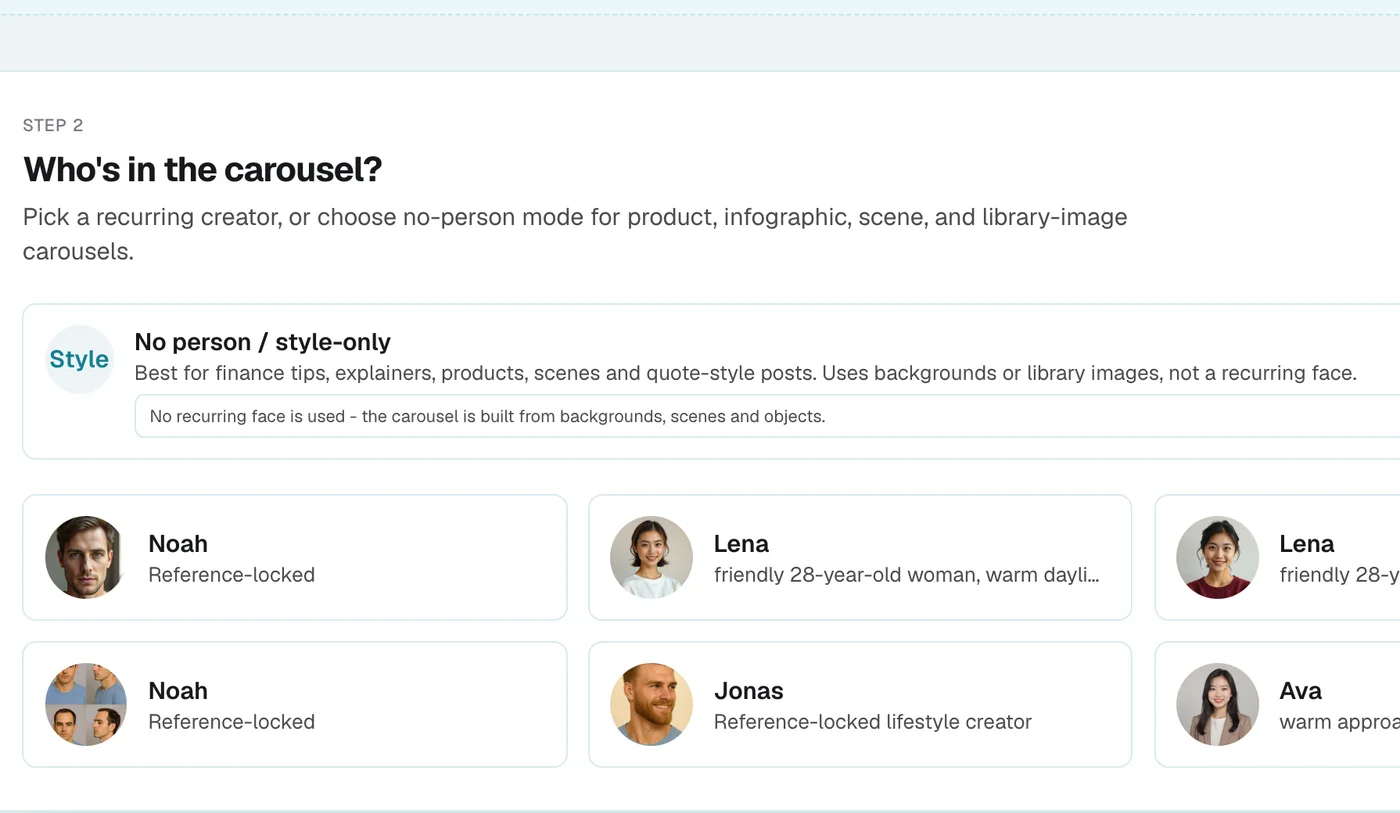
Wavegrain's creator selection. Use no-person mode when a face would distract from the explanation.
Step 2: Write the Full Script First
A carousel is a story, so plan the whole arc before touching images. The reliable structure is a strong hook on slide one, two or three supporting points in the middle, and a clear call to action at the end. Writing all five captions together keeps the narrative tight and tells you what each image needs to show.
Generating images before you have a script is backwards. You end up with five nice pictures that do not connect. When the words come first, every slide has a job, and the visuals support the message instead of competing with it.
For example, a creator could answer "How do I turn one article into a carousel?" Slide one asks the question, slide two gives the short answer, slides three and four show the selection and editing steps, and slide five gives a next action. The reader gets an answer early, then reasons to continue.
| Slide | Job | Draft message |
|---|---|---|
| 1 | Ask a useful question | "Can one article become a carousel?" |
| 2 | Give the answer | "Yes. Pull out one question and its clearest answer." |
| 3 | Show the selection | "Choose two points that support the answer." |
| 4 | Clarify a mistake | "Cut sections that repeat the same point." |
| 5 | Close with a next step | "Link to the full article for details." |
If a person demonstrates the routine, use the saved creator on those slides. A product close-up or a simple diagram may explain another slide better. The visual system can stay coherent through color, typography, and crop even when the subject changes.
Step 3: Generate Every Slide Against the Same Identity
Now generate the images using the same saved reference on slides where the creator should appear. Reference-guided models can preserve recognizable features while changing the scene, pose, or background, but every output still needs checking.
Compare the slides side by side. Look at the face, hairstyle, and other defining details before deciding that the batch reads as one creator.
Step 4: Review and Regenerate Weak Slides
No batch is perfect on the first pass. Maybe slide three has a strange hand, or the brand color is slightly off on slide four. The fix is to regenerate just that slide against the same identity, not to restart the batch. This keeps the slides you already like and replaces only the weak ones, which saves both time and credits.
A human review checks the creator, readability, and story order together. View the export at phone size because a headline that looks clear in an editor may be hard to read in a feed.
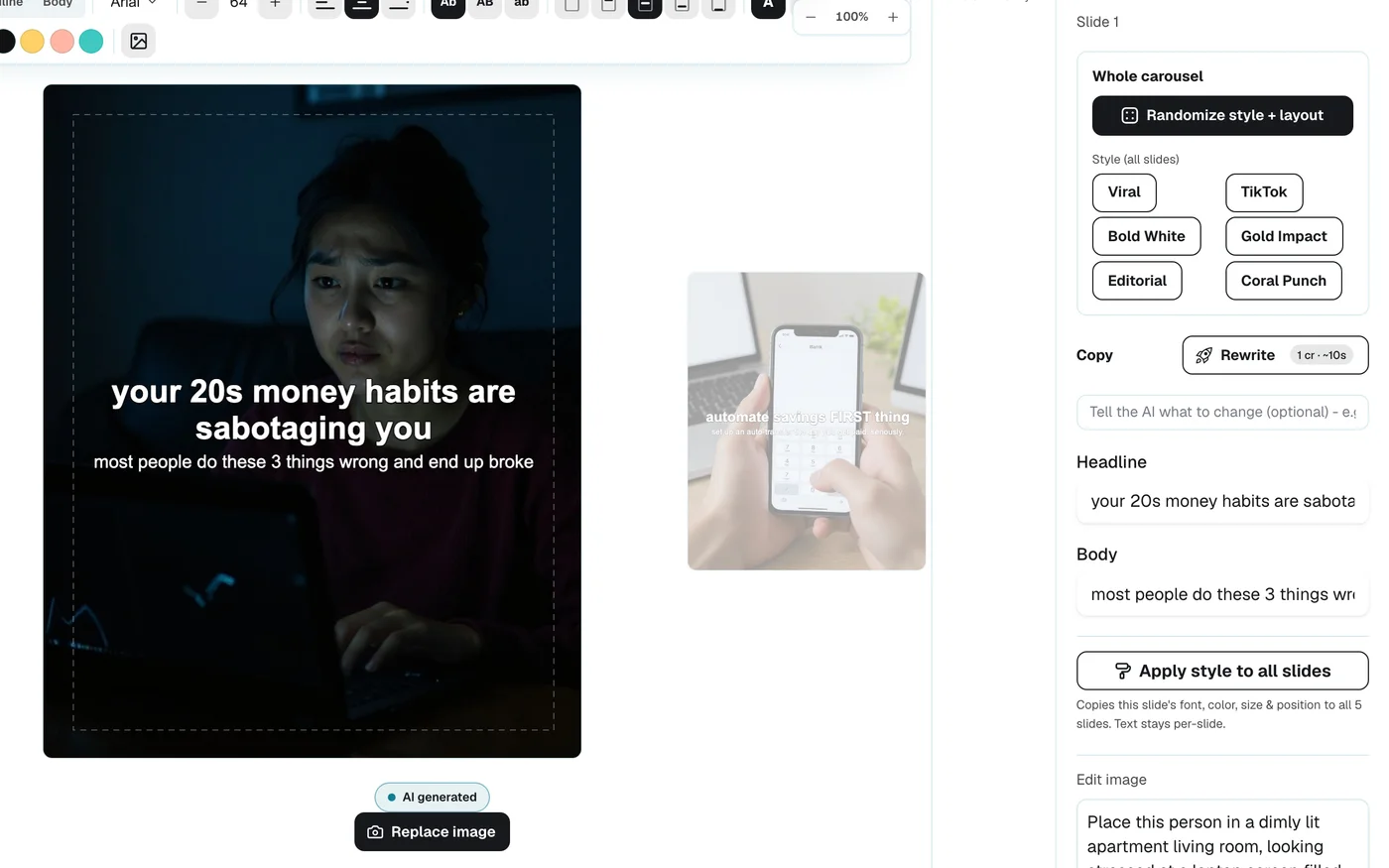
In the Wavegrain editor, inspect one slide at a time and replace an image or revise its copy without rebuilding the whole sequence.
Step 5: Export in the Right Format
Once the batch passes review, choose the output format for the intended destination and inspect the actual files. Check the slide order, crop, and text placement before adding the set to your publishing workflow.
A workflow from topic to reviewed export can be repeated with the next topic. For the reference step, read why AI image characters drift, and use the button at the end of this guide to try the workflow.
What to Look for in a Carousel Tool
Not every generator supports this workflow. First check whether the tool can save a creator identity. Re-entering a description for each image leaves more room for visible drift.
The second thing is whether script, images, and captions are produced together. Tools that only make images leave you stitching copy in by hand, which breaks the one-pass flow and reintroduces inconsistency between what the slide shows and what the caption says. A system that generates the package keeps the message aligned end to end.
The third thing is per-slide control. You want to regenerate a single slide, swap an image, or tweak text without rebuilding the batch. Tools that force an all-or-nothing regeneration waste time and credits every time one slide misses. Look for an editor step between generation and export.
The fourth thing is a quality check. Compare each generated slide with the reference image by eye. Check hands, text, brand accuracy, and the story across slides, since no automated score covers them.
Finally, check the export options. Your carousel needs to leave the tool in the exact aspect ratio your platform expects, packaged and ready to schedule. A clean export is the unglamorous step that decides whether the workflow actually saves you time.
Putting It Together
The loop is straightforward once the identity exists: pick a topic, draft the script, generate slides, review the set, revise weak parts, and export. The amount of editing varies with the topic and the outputs.
A saved identity gives each batch a common reference. The result still earns its place through a useful script and careful review.
Frequently asked questions
- What is an AI carousel generator?
- An AI carousel generator helps turn a topic into a sequence of slides. Some tools also draft captions, create images, and let you review or edit each slide before export. Check the actual workflow before choosing one.
- How do I keep the same character across carousel slides?
- Use a clear reference image for the recurring creator and compare the generated slides side by side. The reference improves the odds of a recognizable face, but it does not guarantee a matching outfit or face on every request.
- How many slides should an Instagram carousel have?
- Use as many slides as the explanation needs. A five-slide outline can cover a question, an answer, supporting steps, and a closing action. Remove any slide that repeats information without helping the reader.
- Can I edit AI carousel slides after generating them?
- Yes. A good workflow lets you regenerate any single slide, swap an image, or edit the text in an editor before export. You should not have to rebuild the whole batch to fix one weak slide.